
View the CMA
A CMA Approval will be sent to you via email. An example is shown below:
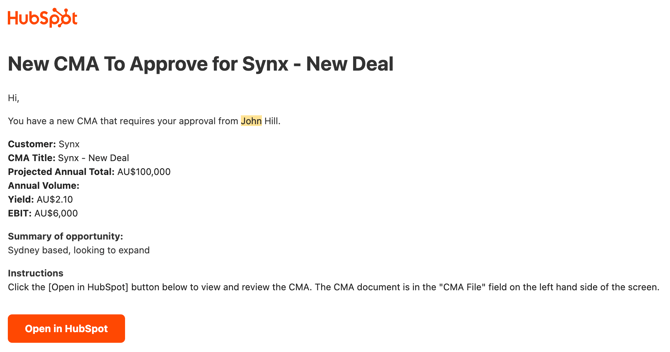
Click the orange [Open in HubSpot] button at the bottom of the email. This will open the screen to review that specific CMA.
NOTE: You will need to be logged into HubSpot to view the CMA. This design is on purpose to provide a layer of security to the system.
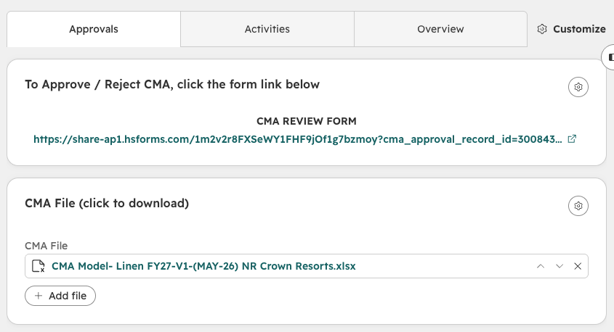
When you are viewing the CMA record, you will see the following:
- CMA Review Form - use this link to Approve or Not Approve the CMA.
- CMA File - the link to the CMA Spreadsheet. From this link, you can download the file locally to view.
- Relevant details of the CMA including Name, Yield, EBIT etc. in the left hand side of the screen.
Approve or Reject a CMA
- After clicking the CMA Review Form, you will be taken to a new website page.
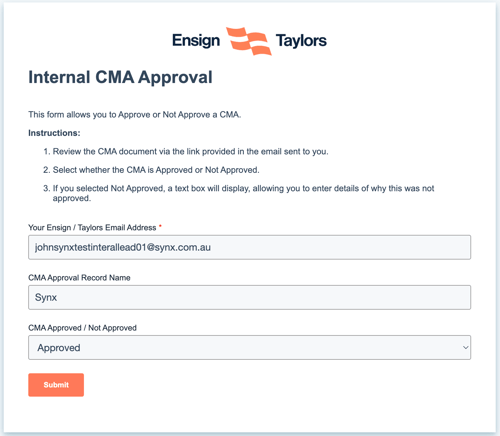
- Once the CMA Review Form is open, choose:
- Approve to approve the CMA
- Not Approved to "reject" the CMA. This will show an additional text box to all you to provide reasoning as to why the CMA was not approved.
- Click the [Submit] button at the bottom of the screen. This submits your review to the system.
Once you have submitted:
- If Approved, the CMA will automatically notify the next approver, or set the whole CMA as approved if you are the final approver.
- If Not Approved, the person who submitted the CMA for approval will be notified, together with reasoning provided. They will adjust the CMA and re-submit for approval. This restarts the whole CMA process.