
Who this is for: Sales users (Sales seats and Sales & Service seats) who work deals from opportunity through to closed won or closed lost. Core users can create and update deals, but they cannot send quotes with e-signatures, so the Final Offer and Credit Check steps need a Sales seat.
Quick links: Sales workspace (then click the Deals tab) | Leads | Training portal | Sales Team Training playlist
Overview of deals in HubSpot
In HubSpot, a deal is a sales opportunity with a customer or prospect. Each deal moves through the stages of the Ensign sales pipeline until it is won or lost. This guide explains what each stage means, what you need to fill in, and what happens automatically.
Where deals live in HubSpot
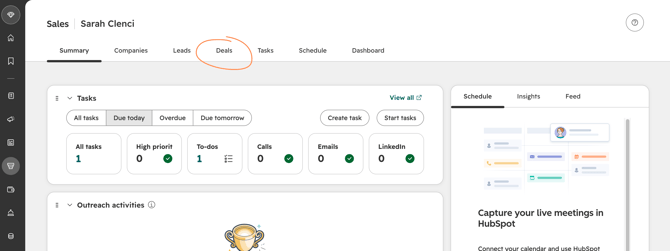
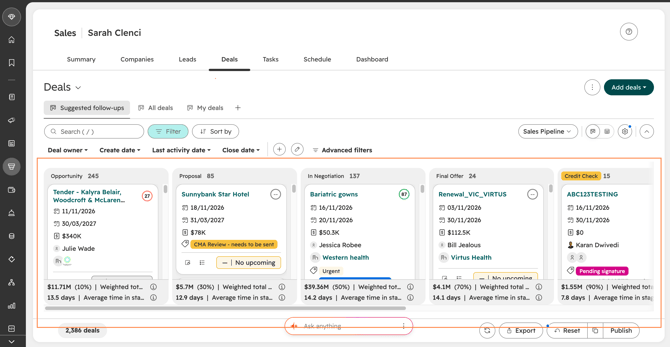
All of your deals are in the Deals tab of the sales workspace.
The Deals tab shows your deals as a board, with a column for each stage of the pipeline.
You can also switch to a list view of your deals.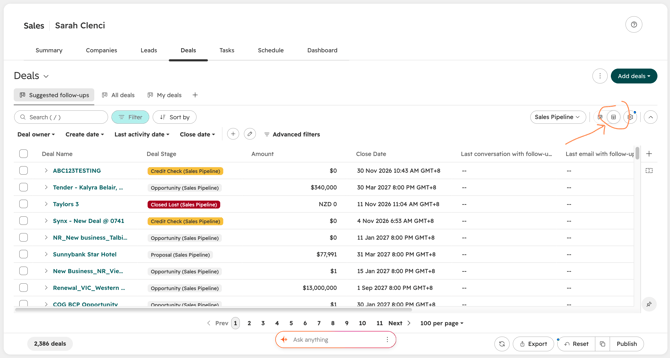
The Ensign deal pipeline
A deal must move through each stage in order. Deals can move quickly through the stages if they need to, but a deal should never skip a stage, because it affects the sales reporting figures.
| Stage | Win probability | What it means | What needs to be true |
|---|---|---|---|
| Opportunity | 25% | A deal is created automatically from a qualified lead. Only qualified opportunities go into the deal pipeline. | Business fit is confirmed, meetings are done and the CMA is being prepared. |
| Proposal | 35% | The CMA has been submitted. This starts the CMA approval chain, which sends the CMA to each approver in turn. | The cost centre and CMA TCV are filled in, the CMA file is attached, and the approval chain is running. |
| In Negotiation | 45% | The deal moves here automatically once everyone in the CMA approval chain has approved the CMA. | The CMA is fully approved, pricing has been presented to the client and terms are being discussed. |
| Final Offer | 65% | Final terms have been issued to the customer. | The Service Agreement and Credit Application have been sent, and you are waiting for the signed documents. |
| Credit Check | 75% | The customer's credit application is reviewed and approved before the deal can close. | The signed credit application has been received and is with the credit team for approval. |
| Closed Won | 100% | The deal is won. This creates an Onboarding record. | The credit application is approved. |
| Closed Lost | 0% | The deal did not go ahead. | A lost reason is required when you close the deal. |
💡While a deal is open, the contact and company stay as Opportunity. When the deal reaches Closed Won, they become a Customer. If a deal is lost, they stay as an Opportunity.
When to create a new deal
Create a deal as soon as you have a real, qualified opportunity. There are three ways this happens:
- From a qualified lead: when you qualify a lead, the Create deal window opens and the deal is created from the lead. This is the normal route. See the Ensign Prospecting and Lead Qualification Guide.
- Existing customers: if an account manager spots a new sales opportunity with an existing customer, it is set up as a deal with the deal type Existing.
- Tenders: if the opportunity is a tender, set Is a tender to Yes. Tenders are already qualified, so they can skip the lead process.
Creating a deal
When a deal is created, it is placed in the Opportunity stage. It must be associated with the company and the contacts involved, so HubSpot can link the right activity to the deal.
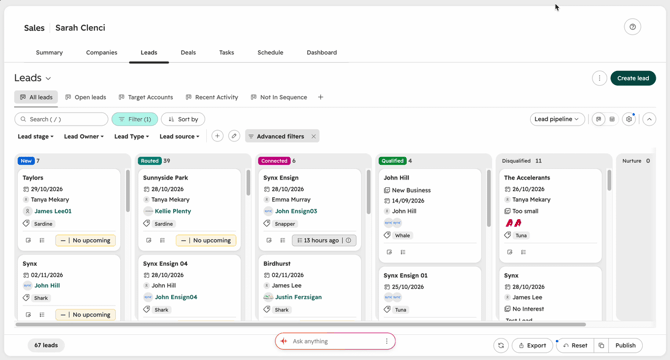
These details are required before a deal can move on from Opportunity:
- Deal type: New or Existing.
- Brand: Ensign or Taylors. This syncs from the lead.
- Business unit or division: Linen or Garments. This syncs from the lead.
- Sector: the customer's sector. This syncs from the lead.
- Amount: the expected deal amount.
- Close date: when you expect the deal to close.
These are optional at this stage:
- Site inspection date: if a site inspection is planned.
- Is a tender: tick this if the deal is a tender.
- Tender due date: the date the tender is due, for tenders only.
After you create the deal, it opens on the deal record. The deal information is on the left, the overview and activity are in the centre, and the associated records are on the right.
IMAGE FOR SARAH TO ADD: Screenshot of a deal record in the Ensign portal showing the deal information on the left, the activity in the centre and the associated records on the right. Use Ensign test data.
Moving a deal through the stages
There are two ways to move a deal to the next stage:
- Drag the deal card from one column to the next on the Deals board.
- Change the Deal stage on the deal record.
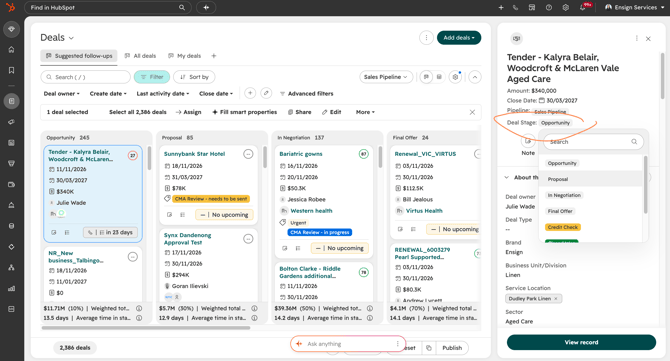
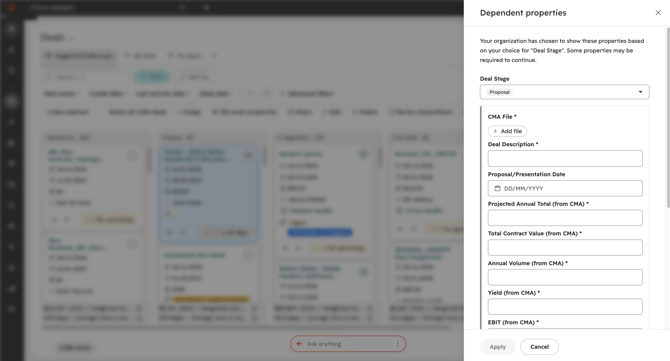
When you move a deal, HubSpot asks you for the information needed for that stage. Fields marked with an asterisk are required.
Opportunity to Proposal
At this stage, you prepare the pricing and the CMA, and submit the CMA for approval.
These fields are required before the deal can move to Proposal:
- Cost centre:* the plant and business unit (Linen or Garments) the deal belongs to.
- CMA file:* attach the CMA file to the deal.
- CMA TCV:* the total contract value from the CMA. This is separate from the deal Amount, so enter it as well.
These are optional:
- Proposal or presentation date: the date you presented the proposal.
- Services start date: when the customer's services are due to start.
TO CONFIRM: Whether the live build sends a deal back to Opportunity when the cost centre or CMA TCV is missing or zero. Check this when testing
🚧 The CMA approval process is live in HubSpot. A few details are still being confirmed, so check with your admin if anything here does not match what you see.
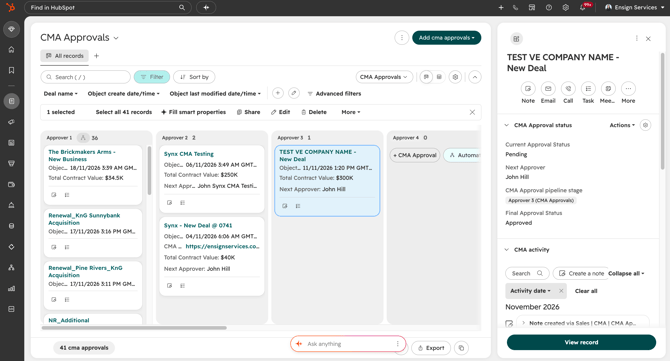
Moving a deal to Proposal and setting CMA Request status to ‘Send for approval’ submits the CMA and starts an approval chain. HubSpot creates a CMA record for the submission, which shows where the CMA is up to. The chain makes sure every CMA gets the sign-off its value needs, in order.
A new CMA record is created when all of these conditions are met:
-
Deal stage = proposal, AND
-
CMA Request Status = ‘Send for approval’
You will see these values when you move a Deal into the ‘Proposal’ stage


TO CONFIRM: How the CMA TCV is worked out. The suggested method is the annual revenue from the CMA summary multiplied by the initial contract term, excluding GST. Reps enter it by hand to begin with.
Who approves
The approvers are set by the deal's cost centre and its CMA TCV. Each band adds approvers on top of the band below.
| CMA TCV | Approvers, in order | Steps |
|---|---|---|
| Up to $30,000 | Commercial Manager, then the site approver or approvers | 2 to 3 |
| $30,001 to $500,000 | The above, then two senior approvers | 4 to 5 |
| Over $500,000 | The above, then two more senior approvers | 6 to 7 |
Some sites (Punchbowl, Darra Garments, Dudley Park Garments and Murdoch Garments) have two site approvers, so their chains are one step longer. Every deal in the pipeline goes through the approval chain, including small deals. National deals have one deal per site, each with its own CMA and its own chain.
The list of approvers is kept in a table that an admin looks after, so you do not need to know who the approvers are. HubSpot works it out for you.
How the chain works
- The first approver gets an email notifying them to review a CMA.
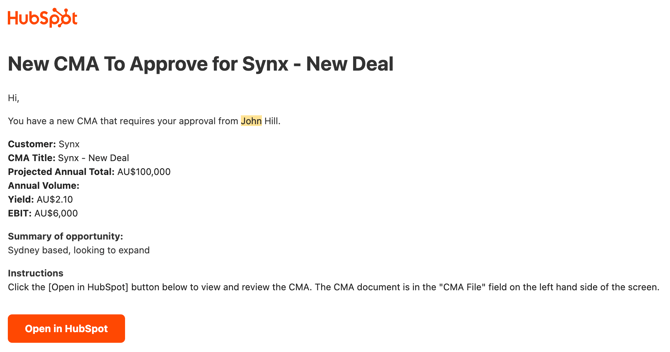
- They click the [Open in HubSpot] link in the email to view the CMA record.
- They use the link on the CMA record to open the approval form, where they approve or do not approve. They can download a local copy of the CMA File from the CMA File field.
NOTE: All approvers will require a HubSpot account to approve a CMA. At minimum, they require a View Only account.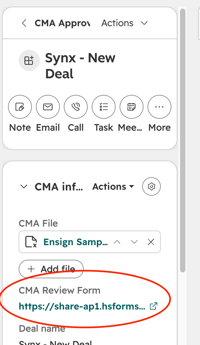
- The system will open a window where the CMA can be approved, or rejected with a reason for rejection.
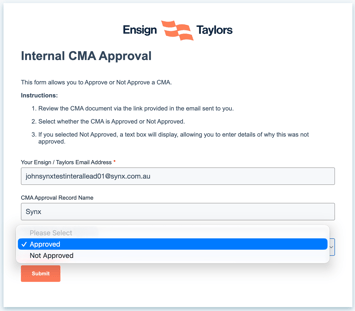
- When the [Submit] button is clicked, a note is added to the CMA Record and the Deal with details of the Approve / Reject decision.
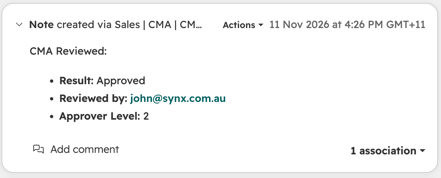
- If the CMA is approved, and there is a next approver they are notified via email and they follow the above process.
- When the last approver approves, the CMA moves to the “Accepted” stage, and the sales Deal moves to In Negotiation automatically.
Each decision is recorded on the CMA record. Open the CMA record from the deal at any time to see who has approved and who it is waiting on.
⚠️ Hard rule: do not send pricing to the client until the CMA is fully approved.
If an approver does not respond
There are no automatic reminders. Each approver gets one email. Check the CMA record to see who the CMA is waiting on, and follow up with them yourself.
If an approver does not approve
If the CMA is not approved:
- The person who submitted the CMA is notified via email, together with the reason why the CMA was not approved.
- The CMA record moves to the “Not Approved” stage.
TO CONFIRM: What happens in the live build when an approver does not approve: whether the deal goes back to Opportunity, how you are told and why, and where the chain picks up when you resubmit. Also confirm whether a change to the CMA TCV after approval, or a deal moved to In Negotiation before approval, is handled. Update this section once tested.
Proposal to In Negotiation
You do not move the deal yourself. It moves automatically when the CMA is approved. At this point you present the approved pricing to the client and discuss terms.
In Negotiation to Final Offer
At this stage you issue the final terms to the customer. Send the Service Agreement and ask the customer to complete the Credit Application.
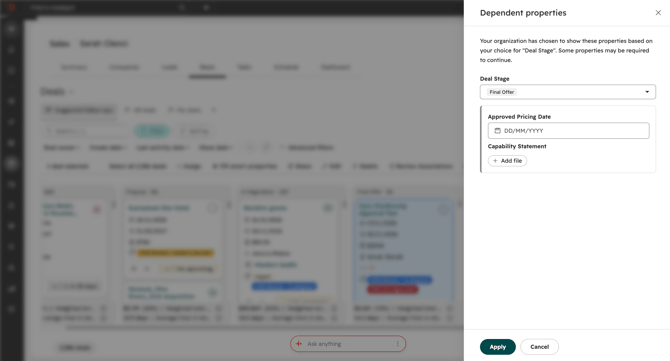
Update these fields:
- Approved pricing date: the date the pricing was approved.
- Capability statement: the capability statement for the customer.
Final Offer to Credit Check
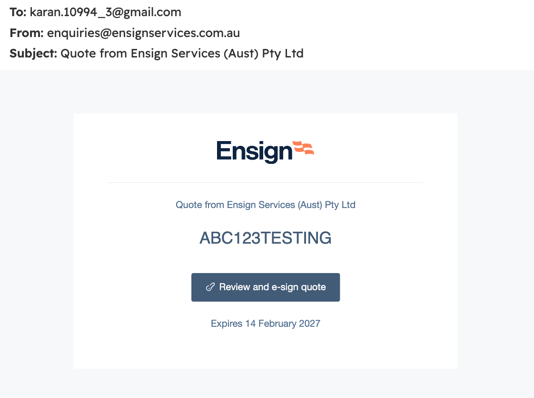
The Credit Application replaces the old paper credit check form. When the customer submits the Credit Application form, HubSpot fills in the quote on the deal with their answers and sends it to them automatically for e-signature.
It helps to let the customer know what they will be asked for:
- Details of the business, such as the legal name, trading name and ABN or ACN
- Details of the directors, partners or trustees
- The type of business and when it started
- The weekly credit limit they need
- Accounts payable contact details and a billing email
- Three trade references
- Agreement to Ensign's trading terms, and credit reporting consent
- An e-signature from an authorised signatory
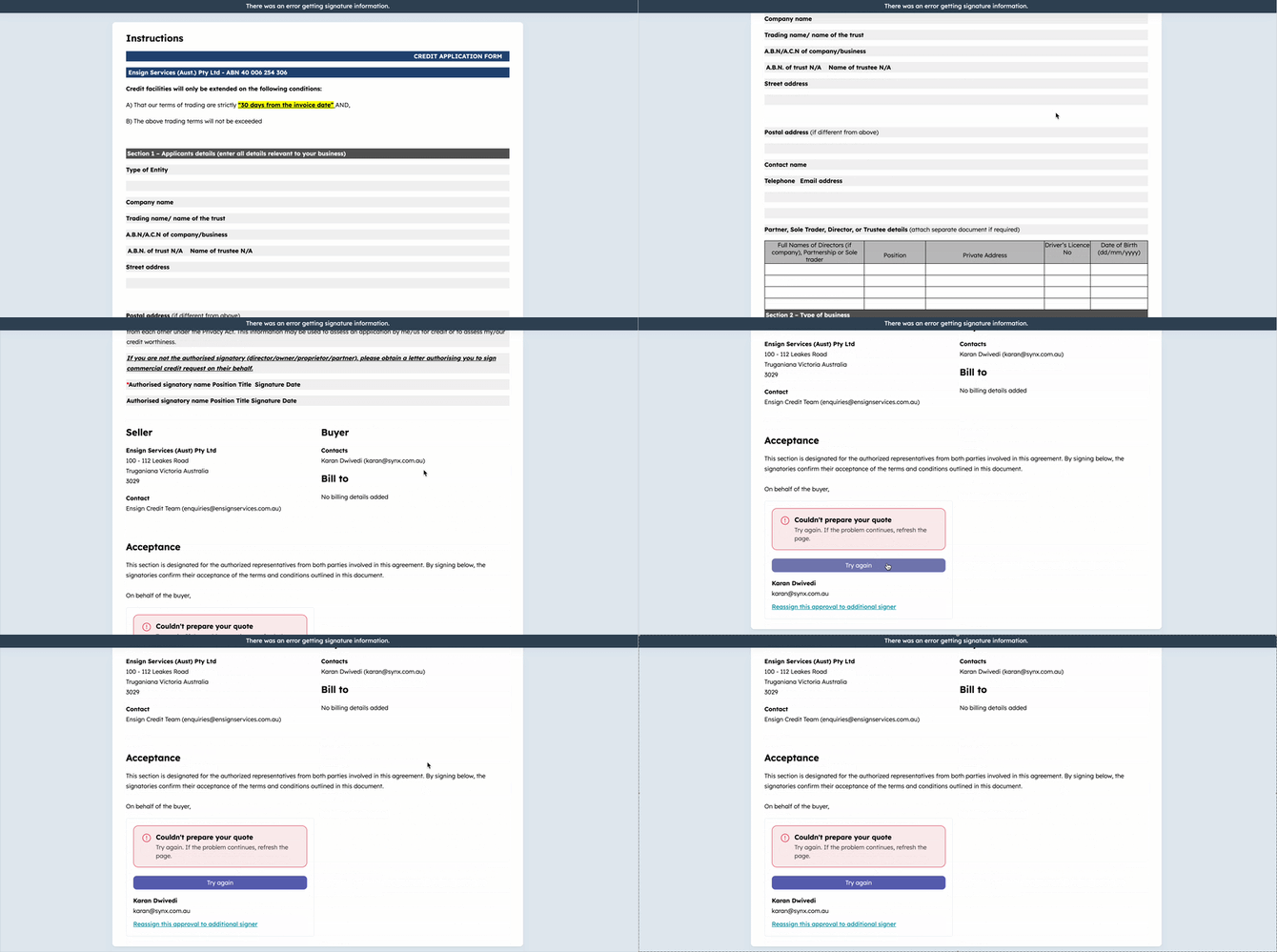
Once the signed credit application is back, it goes to the credit team for review and approval.
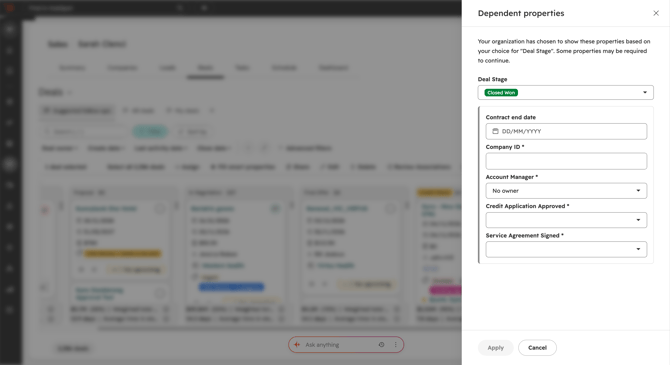
Credit Check to Closed WonWhen the service agreement is signed and the credit application is approved, move the deal to Closed Won.
Before the deal can close, these fields must be filled in:
- Close date*
- Company ID:* this comes from the associated company.
- Account manager:* the person who will own the onboarding.
- Credit application approved:* tick this once credit is approved.
These are optional:
- Service agreement signed: tick this once the agreement is signed.
- Expiry date: when the customer's contract expires.
What happens after Closed Won
When a deal reaches Closed Won:
- The contact and company become a Customer.
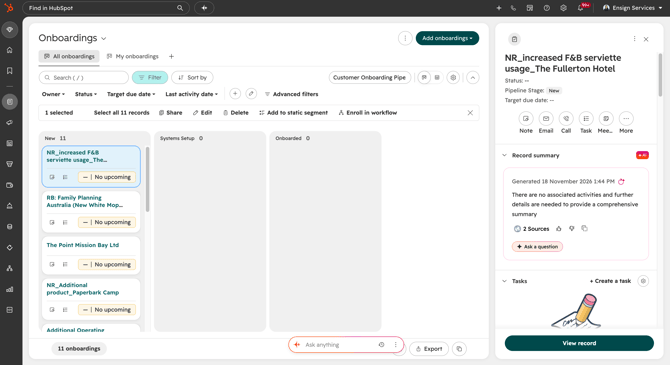
- An Onboarding record is created automatically and assigned to the deal's account manager.
The onboarding record moves through three stages:
- New: created automatically when the deal is won.
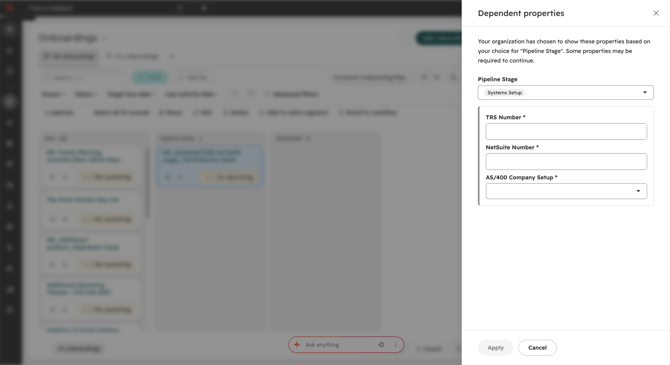
- Systems Setup: the customer is entered into AS/400, and the NetSuite number is added.
- Onboarded: the customer is live and synced in AS/400 and NetSuite.
The account manager is prompted to tick AS/400 company setup and NetSuite company setup as these are done, and to add the TRS number and NetSuite number.
Closed Lost
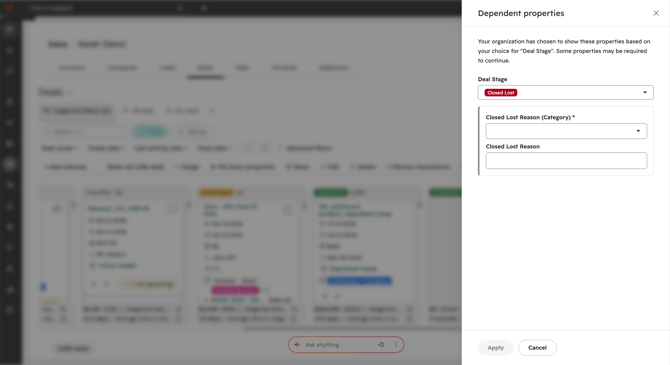
If the deal does not go ahead, move it to Closed Lost. A reason is required.
Fill in:
- Close date*
- Closed lost reason:* choose the reason from the drop-down.
- Closed lost reason detail: a short note so the team understands why.
Why this matters
The information you enter on deals feeds the sales reports the business relies on:
- Pipeline by stage, broken down by sales rep and value
- Win rate and deal conversion
- Monthly closed won revenue
- Average sales cycle and deal age
- Closed lost by reason
- [ ] I can find my deals on the Deals tab and switch between board and list view
- [ ] I know the seven stages of the pipeline and what each one means
- [ ] I know how to create a deal and which fields are required
- [ ] I know I must associate the company with every deal
- [ ] I know how to move a deal and that I should not skip stages
- [ ] I know how CMA approval works and that pricing is not sent until the CMA is approved
- [ ] I know how the Credit Application and e-signature work
- [ ] I know what is required to close a deal as won
- [ ] I know what happens after a deal is closed won
- [ ] I know I must give a reason when a deal is closed lost
Next guide: Ensign Service Enquiry & Help Desk Process