
🎯
Who this is for: Sales and pre-sales users on a Sales seat (Sales or Sales & Service). The sales workspace and Leads tab are part of the Sales seat, so Core and Service-only users will not see them. If you cannot see them, ask your HubSpot admin.
🚫 Not using yet: The HubSpot AI Prospecting Agent. We are starting with the Sales workspace and Buyer intent, and we will review the agent later.
The sales workspace is where you manage your daily workload in HubSpot from one place. It is also where you work new leads, from the moment they arrive to the point where they are qualified or disqualified. This guide covers both: how the workspace works, and how Ensign qualifies leads.
<aside>
Your daily routine
The sales workspace is where you start your day. Work through it in this order:
- Summary: check the tasks that are due today and overdue.
- Leads: open the Leads tab and work your New leads first, then follow up on leads you have already contacted.
- Log everything: every call, email and meeting is recorded in HubSpot, not just in your inbox or notebook.
- Check the lead source: every lead should have a lead source. If it is blank, fill it in.
- Always set a next activity: never leave a lead without a follow-up task or meeting.
- Decide the outcome: qualify the lead (which creates a deal) or disqualify it with a reason.
- Find new prospects: use Buyer intent (see the end of this guide) and your target account lists to find companies worth contacting.
The sales workspace
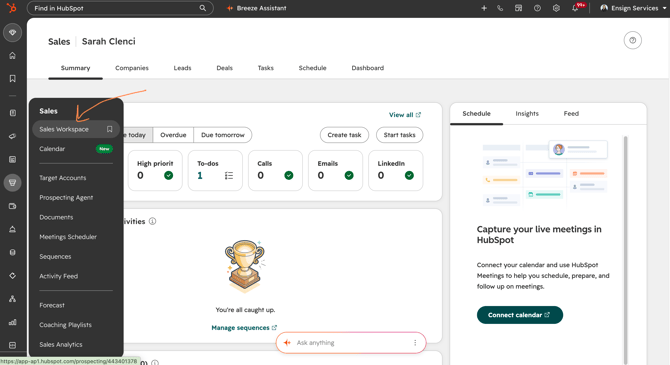
The sales workspace has these tabs across the top: Summary, Companies, Leads, Deals, Tasks, Schedule and Dashboard.
Summary tab
The Summary tab gives you an overview of everything on your plate. It shows:
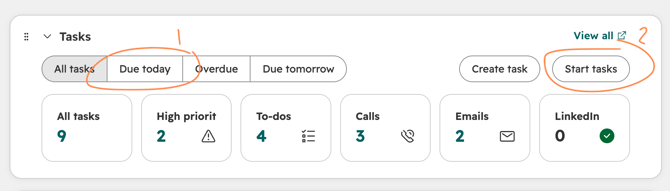
- Your task progress: your tasks organised by type. Use the Due today drop-down to see tasks that are due today or overdue.

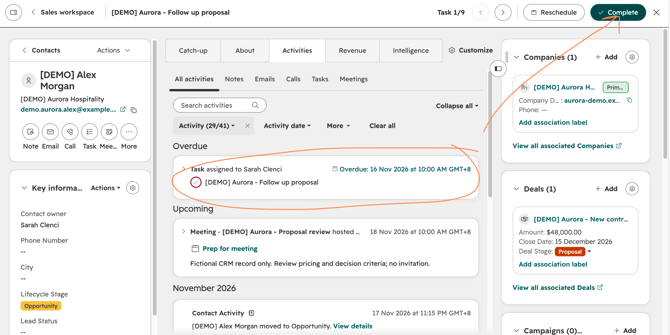
- Tasks: everything due today or overdue, grouped by type. Click a type to see each task and its record, or click Start all [X] tasks due today to see them all at once. Click the checkmark next to a task to complete it.
- Schedule: your calendar for today. Click an event to see the full details, including virtual meeting links.
- Sequences: the task reminders from your active sequences. Click a step name to see each task and the contact it relates to, and use the checkmark to complete it. Use the drop-downs to switch sequence or step, or choose All task steps to see everything.
- In the Leads tab you will also see the leads that need your attention, grouped by lead stage. Leads should never sit in one stage for long.
Leads tab
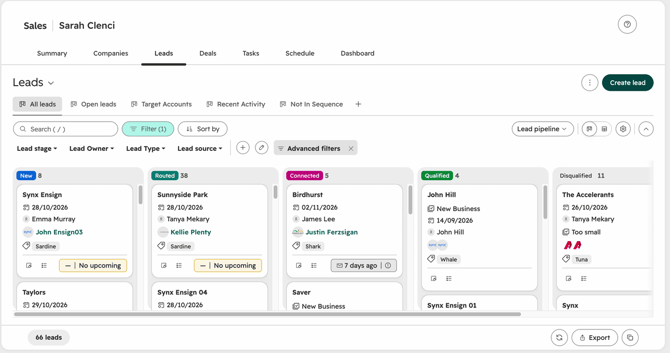
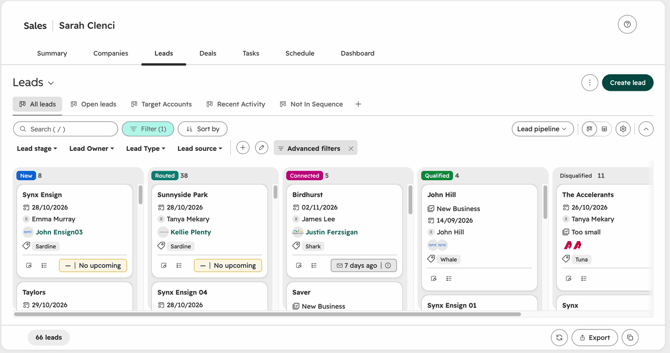
The Leads tab shows your leads as a board, with a column for each lead stage and a count of how many leads are in it, for example New, Routed and Connected.
Use the saved views at the top to switch between lists of leads:
- All leads
- Open leads
- Target Accounts
- Recent Activity
- Not In Sequence
Use the filters above the board to narrow the list by Lead stage, Lead Owner, Lead Type and Lead source. Click Advanced filters if you need more.
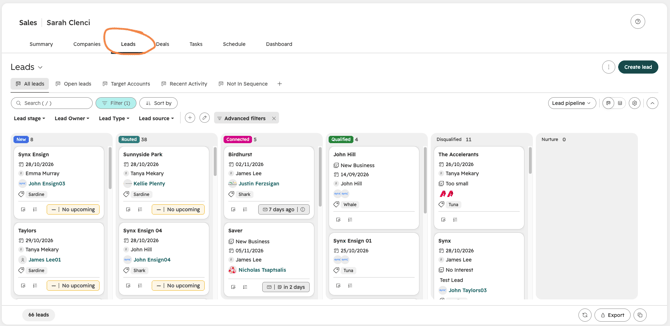
To work a lead:
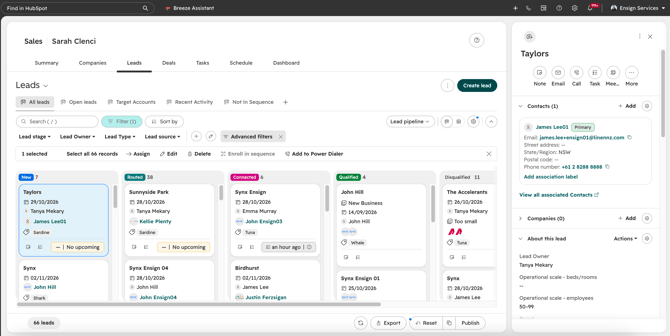
- Click the lead's name on the board. An overview of the contact opens in the right-hand panel.
- From the panel you can send an email, make a call or enrol the contact in a sequence. Some of these actions, such as sending an email or logging a call, can move the lead to the next stage automatically.
- On the Overview tab you can see when you last contacted the person, when they last engaged, and the last and next activity.
- If nothing is scheduled, use the Schedule next activity drop-down to set the next step. You can also do this straight from the leads list.
- The About, Notes and Associations tabs show recent communications, notes, company details, deals, tickets and more.
Schedule tab
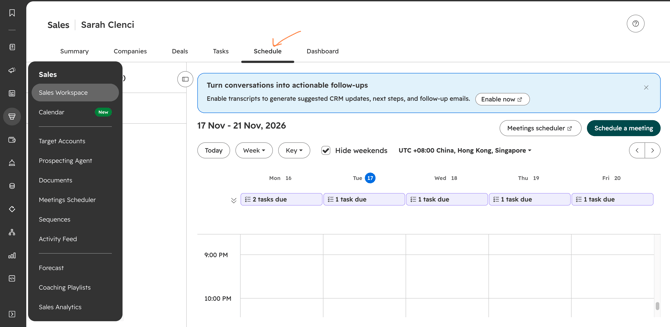
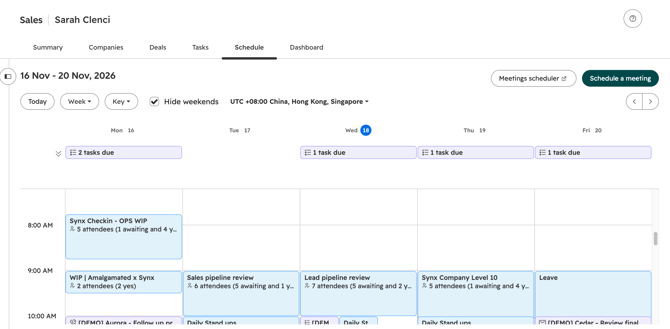
The Schedule tab is a read-only view of your connected calendar and all your tasks. Use it to plan your workload and spot clashes, for example if you are out of the office but have tasks or meetings booked.
- Click Contacts with meetings today to see who you are meeting, then click a name to open the record.
- Use the Day drop-down to switch between Day, Week and Month.
- Select [X] tasks due to see the tasks for the period.
- Click a meeting to see the details and virtual meeting link.
- After a meeting, click Update Outcome next to it to record how it went.
Companies, Deals, Tasks and Dashboard tabs
The other tabs in the sales workspace are:
- Companies: the companies you work with. Use it to look up an account and see its contacts, leads and deals.
- Deals: your deals. Once a lead is qualified, the deal created from it appears here. See the Ensign HubSpot Sales Process Training Guide.
- Tasks: all of your tasks in one place, so you can work through what is due and overdue.
- Dashboard: your sales dashboard, with reports on your own activity and results.
Lead process and qualification
As part of the pre-sales qualification team, you are responsible for working every new lead, whether it came from the website, a phone call, a referral or your own prospecting, and deciding if it is a good fit for Ensign.
How leads come in
Every lead has a lead source so we can report on where leads come from. The options are:
- Cold outreach and prospecting
- Referral
- Website (inbound)
- Phone
- Existing customer expansion
- Tender and procurement
Leads from the website are created automatically when a customer submits the Ensign or Taylors contact us form. For these leads the lead source is set to Website (inbound), and the brand and country are set for you based on which website the enquiry came from (Ensign is Australia and Taylors is New Zealand).
Each lead also has a business unit or division (Linen or Garments).
Lead stages
Every lead moves through a set of stages. The stages tell everyone how far along the lead is, and they drive our reporting, so please keep them up to date.

| Stage | What it means | What you need to do |
|---|---|---|
| New | A lead record has been created from a trigger such as a website form, a trade show import or an outreach sequence. Nobody has acted on it yet. | Check the key details are filled in (see the table below) and add anything that is missing. |
| Routed | The lead has been reviewed and assigned to the right person or team to follow up. The contact becomes an MQL. | Make sure the lead has an owner. An owner is required. |
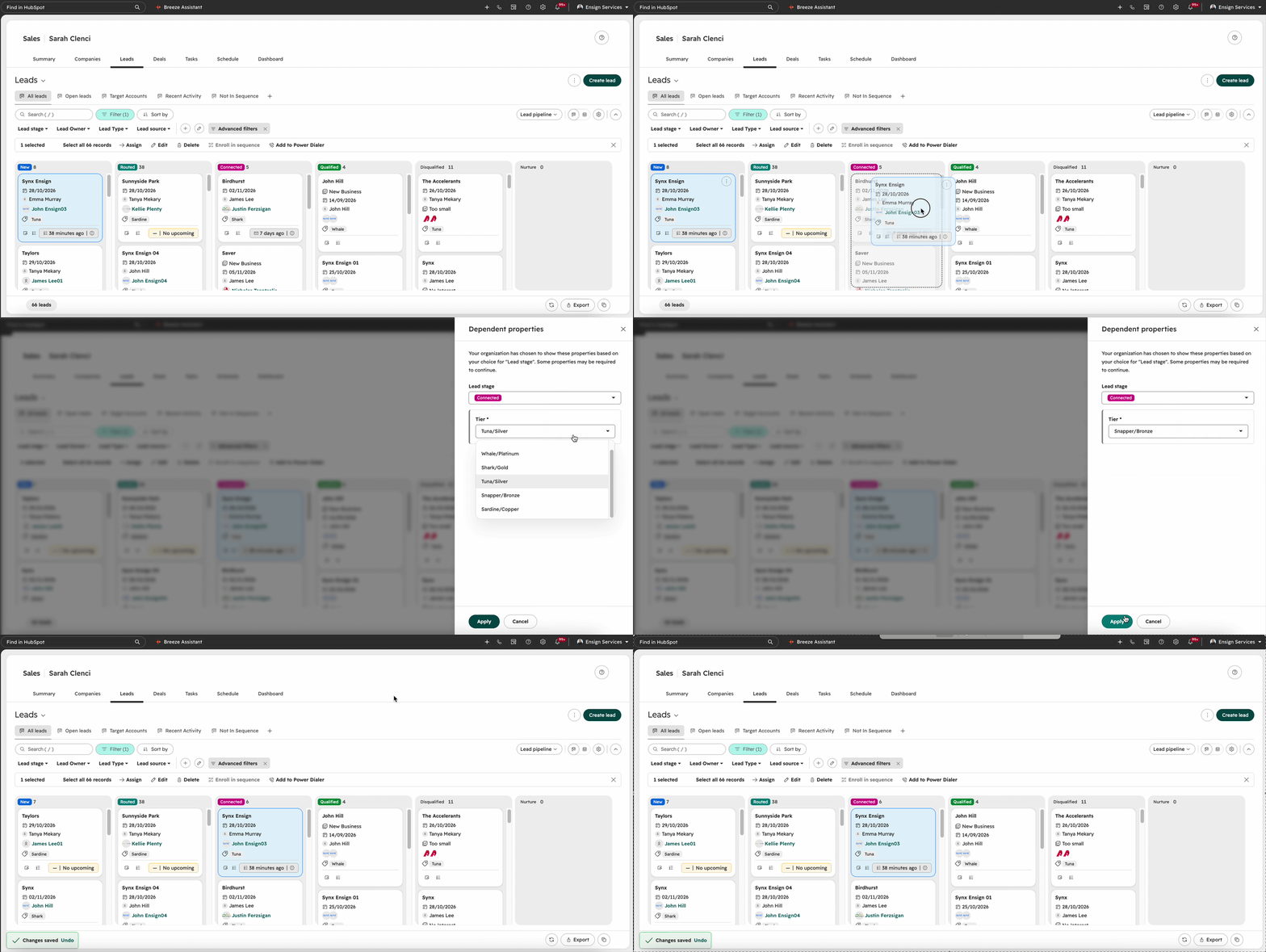
| Connected | A rep has made real contact with the lead by email or call. | Set the lead's tier. It is required before the lead can move on. |
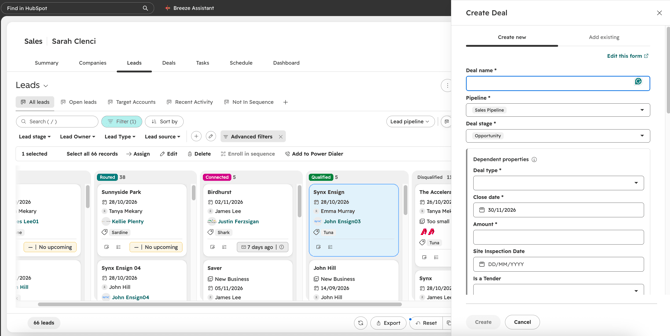
| Qualified | The lead is a confirmed fit for Ensign's services. The contact becomes an SQL. | Complete the Create deal window that pops up. You must finish it to move the lead to Qualified. |
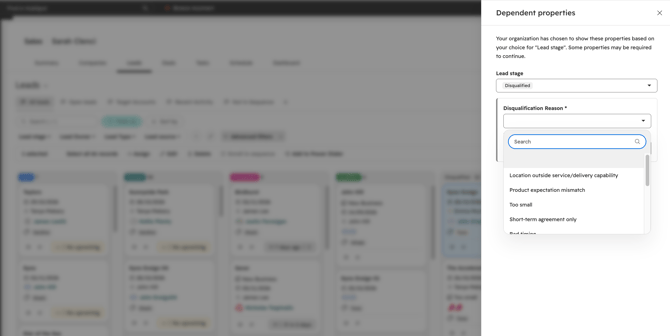
| Disqualified | The lead is not a fit, or is not proceeding. | Choose a disqualification reason and add a short detail note. |
⚠️ Try not to skip stages. If a lead goes from New straight to Qualified, our reports cannot show how long leads take to get a response or where leads are dropping off.
Details to capture at each stage
Some details are required before a lead can move out of a stage.
| Stage | Required | Optional |
|---|---|---|
| New | Lead source, brand, business unit or division, company name, email, phone, address, state | Products or services, postcode, country, sector, comment |
| Routed | Owner | None |
| Connected | Tier | None |
| Qualified | Complete the Create deal window | None |
| Disqualified | Disqualification reason | Disqualification reason detail |
The brand and country are filled in automatically for website leads. For leads from other sources, add them yourself.
How we decide the tier (lead size)
Ensign groups leads by size, using the number of beds or rooms and the expected annual opportunity. The tier is required before a lead can move on from Connected. Use the number of beds or rooms from your conversation to work out the tier, or confirm it directly with the customer.
| Level | Who they are | Beds | Annual opportunity |
|---|---|---|---|
| Whale | National strategic accounts, enterprise agreements, multi-segment opportunities | 300+ | $1M+ |
| Shark | Major groups, multi-site operators, significant rollout potential | 150 to 300 | $500k to $1M |
| Tuna | Large hotels, large parks, regional groups | 80 to 150 | $250k to $500k |
| Snapper | Mid-sized operators | 30 to 80 | $100k to $250k |
| Sardine | Small independents | Under 30 | Under $100k |
Whale leads (Tier 1) are linked to a target account in HubSpot so the right people can see them.
In the tier drop-down, the tiers may also be shown as Platinum (Whale), Gold (Shark), Silver (Tuna), Bronze (Snapper) and Copper (Sardine).
Working a new lead
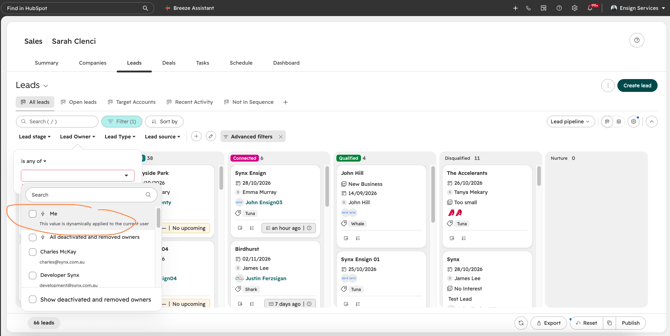
- Open the sales workspace, go to the Leads tab and find the new leads space. Click the Lead Owner drop-down and ****click Me to view only your Leads.
- Click a lead on the left-hand side. It shows the details for that contact, their recent communications and any playbooks.
- Open the recent communications section. For website leads you will see the details from their most recent form submission.
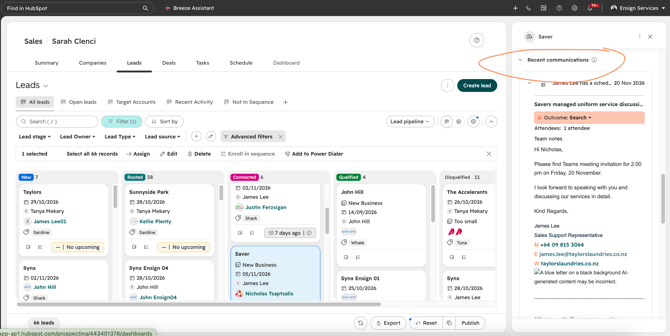
- Check the details. Fill in anything missing from the details table above.
- Make sure the lead has an owner. If it should go to someone else, assign it to them.
- Contact the lead by call or email, and log it in HubSpot. Once you have made real contact, the lead is Connected.
- Set the tier: use the number of beds or rooms you have confirmed (see the tier table above), and check the products or services.
- Set the next activity so the lead is never left without a follow-up.
- Decide the outcome: qualify or disqualify (see below).
Qualifying a lead
If the lead is a confirmed fit:
- Move the lead to Qualified.
- The Create deal window will open. Complete it. You cannot move the lead to Qualified until you do.
- A deal is created and the lead moves on to the sales process.
See the Ensign HubSpot Sales Process Training Guide for what happens next.
Disqualifying a lead
If the lead is not a fit or is not proceeding:
- Move the lead to Disqualified.
- Choose a disqualification reason. This is required.
- Add a short disqualification reason detail so the next person understands why.
The reasons you can choose from are:
- Location outside service or delivery capability
- Product expectation mismatch
- Too small
- Short-term agreement only
Why this matters
Everything you record here feeds our reports, so the details you capture are what the business uses to understand where leads come from and how they turn into deals:
- Leads created by source
- Time to first response
- Lead to deal conversion
- Qualified versus unqualified leads
Buyer intent (finding new prospects)
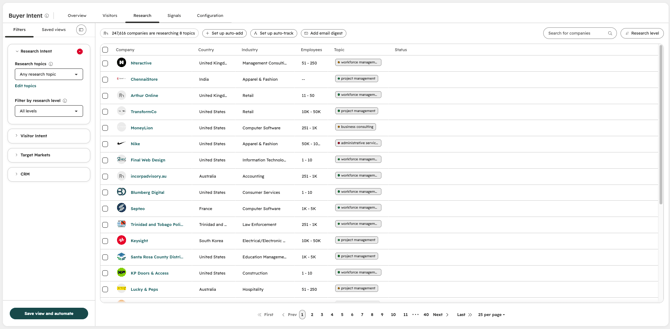
Buyer intent shows you companies that appear to be researching the kind of products and services Ensign offers. Use it to find new prospects and to decide who to contact first.
Open it here: HubSpot Buyer intent, Research intent
How to use it
- Open the Research intent page using the link above.
- Review the companies listed and the topics they are researching.
- Decide if the company is a good fit for Ensign. Check the size, industry, location and whether they are already a customer.
- Search HubSpot for the company before you do anything else. If it already exists, work from the existing record so you do not create a duplicate.
- If the company is a good fit and is not in HubSpot, create the company and the right contact. Set the lead source and make sure you are the owner.
- Create a lead for the contact so it shows up in your Leads tab as New.
- Schedule your first activity, such as a call or an email.
- Add the company to your target account list if it fits one.
⚠️ Always search before you create. Duplicate companies and contacts cause confusion and split the history of the account.
💡 Buyer intent is a signal, not a promise. A company researching a topic is not the same as a company ready to buy, so use it to prioritise your outreach, not to replace your judgement.
Sales user checklist
- [ ] I can see the Summary, Companies, Leads, Deals, Tasks, Schedule and Dashboard tabs
- [ ] I know where my tasks due today and overdue are
- [ ] I can open a lead, send an email, make a call and schedule the next activity
- [ ] I know what details a lead needs at each stage
- [ ] I know how to qualify a lead and complete the Create deal window
- [ ] I know how to disqualify a lead and choose a reason
- [ ] I know the tier table and how to set a lead's tier
- [ ] I have opened Buyer intent and know how to check for duplicates before creating a company
- Next guide: Ensign HubSpot Sales Process Training Guide